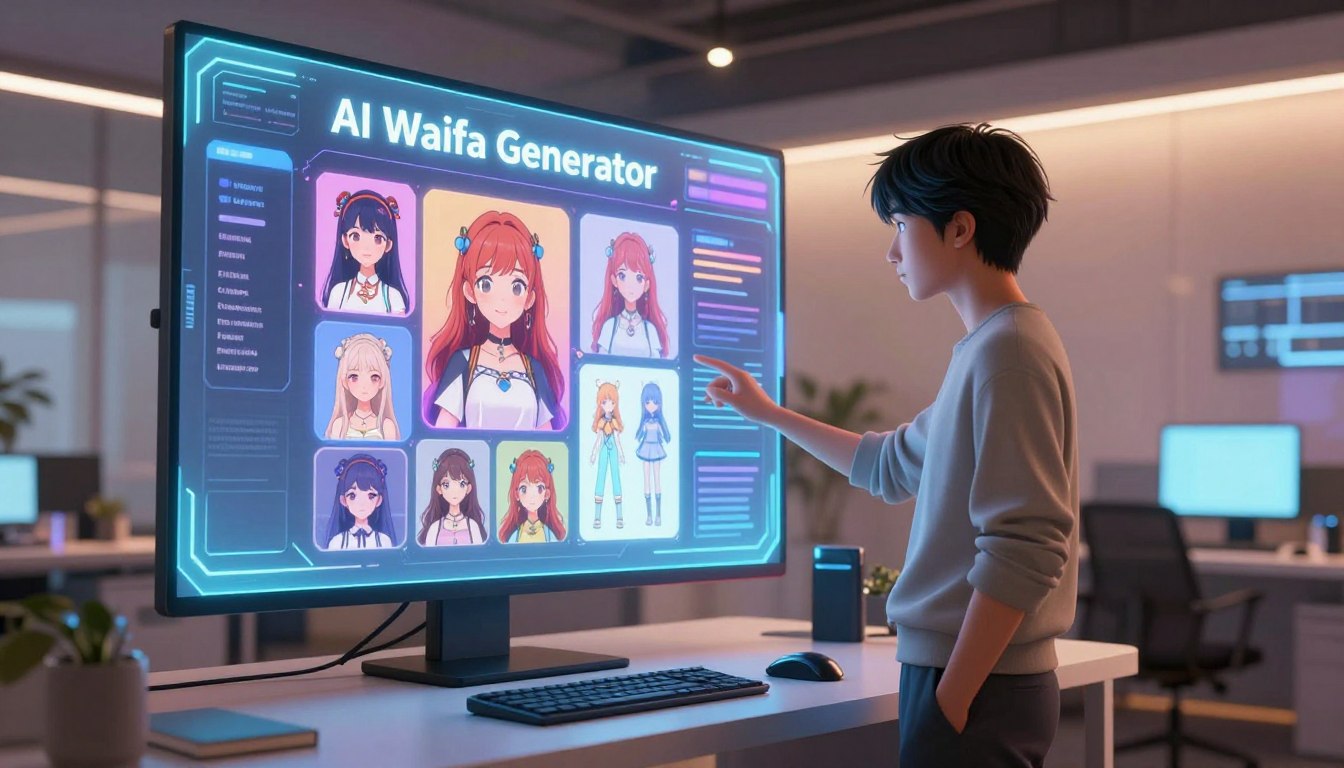

Ever thought about bringing your creative dreams to life with perfect detail? Many fans find it hard to find art that matches their exact vision. But, the world of digital creation is changing fast.
Learning to use a ai waifu generator lets you create stunning visuals. This guide shows how to use local tools to make art that fits your style.
We’ll show you how to use advanced models and LoRAs to improve your work. Whether you’re starting out or want to get better at making pornworks waifu, this guide has what you need.
Knowing the waifu ai generator world lets you explore new artistic heights. Let’s get into the steps to take your character design to the next level.
Key Takeaways
- Learn to use local software for top-notch character making.
- Find out how to mix in special models for unique looks.
- Master LoRAs to boost detail and consistency.
- Follow a simple workflow to better your digital art.
- Get tips on handling complex settings for clearer images.
Setting Up Your AI Waifu Generator Environment
To turn your PC into a character creation studio, you need a solid plan and the right tools. Local generation gives you control over your work, unlike cloud-based platforms. Setting up your ai waifu generator project is the first and most crucial step.
Hardware Requirements for Local Generation
Local image generation needs specific hardware to work well. Your GPU is key, as it does the math for high-quality anime art.
Here’s what you need for a smooth experience:
- GPU: NVIDIA graphics card with at least 8GB of VRAM.
- RAM: 16GB of system memory is recommended for stability.
- Storage: An SSD with at least 50GB of free space for models and checkpoints.
- OS: Windows 10/11 or Linux with updated drivers.
Installing Stable Diffusion WebUI
The Stable Diffusion WebUI is a top choice for your ai waifu generator. It offers a user-friendly interface for managing models and settings. First, install Python and Git, then clone the GitHub repository.
After installing the basics, run the web-user batch file. This sets up your environment and downloads libraries. Be patient during this step, as it can take a while.
Configuring Dependencies and Extensions
Once your interface is set up, focus on adding extensions. These enhance your ai waifu generator with features like advanced upscaling and pose control.
Manage extensions through the “Extensions” tab. Start with essential plugins like:
- ControlNet: For precise pose and composition control.
- ADetailer: To automatically fix faces and anatomy in your images.
- Civitai Helper: To easily organize and update your model library.
Keep your dependencies up to date for smooth workflow. Regular updates ensure compatibility with the latest anime models and features.
Sourcing PornWorks Anime Models
Choosing the right base model is key when setting up your generator. This model sets the art style and quality of every image you make.
Understanding Model Checkpoints
A checkpoint is a big file that holds your AI’s core knowledge. LoRAs are smaller models that add specific styles or traits. But, the checkpoint decides the basic look of your images.
Think of the checkpoint as the canvas and the LoRA as the brush. You need to pick a base model that fits your style first. Then, you can add more details later.
Navigating Model Repositories for Anime NSFW Content
Most creators find assets on community-driven platforms. When looking for anime nsfw content, use the platform’s filters to find what you need.
These platforms have images submitted by users. Always check these samples to see if the model can do what you want.
Verifying Model Compatibility and Safety
Make sure your model works with your WebUI version before starting. Using an old model can cause problems like loading errors or broken images.
Safety is crucial when downloading files online. Use trusted sources and check file hashes to keep your downloads safe.
By checking your files, you keep your system safe and work smoothly. A good collection of verified models saves you time during your creative work.
Mastering the Use of LoRAs for Character Consistency
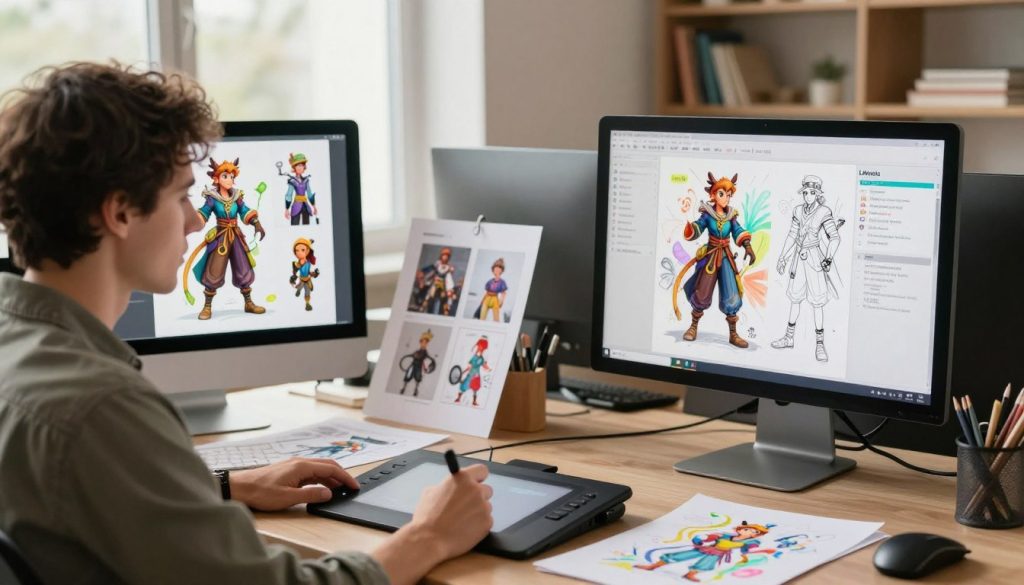
LoRAs are key to keeping your anime characters consistent. They let you add unique styles, body types, or facial features easily. This way, you can control your creative vision fully.
What are LoRAs and Why They Matter
A LoRA is a small file that changes how your base model works. It’s different from big checkpoints because it’s small and specific. You can use many LoRAs together, making customization endless.
By mixing LoRAs, you can create a unique waifu. Consistency is key for a professional look. Experts say that small, precise changes can lead to big results.
Downloading Pre-trained LoRAs for Specific Styles
Finding the right LoRA is easy if you know where to look. Fans often visit community sites for specific anime styles or character types. Always check reviews and samples to ensure quality.
Make sure the LoRA fits your model. A LoRA made for anime might not work with photorealistic models. Check the creator’s trigger words to use it right.
Integrating LoRAs into Your Generation Workflow
After downloading, put the files in your Stable Diffusion folder. Use special syntax in your prompt to use them. This makes switching styles easy.
Getting the right mix of LoRAs is important. If your character looks off, try adjusting the LoRA’s strength. Experimenting is crucial to find the perfect mix.
Crafting Effective Prompts for Your Waifu AI Generator
Creating the right prompts is key to getting the perfect character from your ai waifu generator. It’s all about how you structure your input. This way, every character meets your exact style, mood, and detail needs.
Structuring Positive and Negative Prompts
A good prompt has two parts: what you want to see and what you don’t. Positive prompts describe the character and setting. Negative prompts help avoid errors or unwanted features.
Begin your positive prompt with words like “masterpiece” or “highly detailed.” Use terms like “bad anatomy” or “extra fingers” in the negative prompt to keep the image right. This method keeps the AI on track with your vision.
“Creativity is intelligence having fun, and in the world of AI, your prompts are the instructions for that fun.”
Utilizing Prompt Weighting for Better Results
At times, the AI might overlook a detail you care about. Prompt weighting lets you emphasize or reduce certain keywords. Most tools use parentheses for this.
For instance, “(blue hair:1.2)” tells the ai waifu generator to focus more on blue hair. Lowering the weight can balance out dominant features. This ensures your character looks consistent every time.
Managing Aspect Ratios and Resolution
The image size greatly affects how the AI arranges the scene. Portraits are great for focusing on characters, while landscapes are better for backgrounds.
Make sure your resolution matches the model’s training data. Wrong sizes can cause distorted images or duplicate characters. Keeping your dimensions right ensures a polished result every time.
Advanced Sampling and VAE Settings
Getting high-quality character art starts with setting up your sampling and VAE parameters right. These settings are key to making your anime nsfw art look great. They help the model turn your ideas into real images.
Selecting the Right Sampler for Anime Styles
Samplers are important for making images clear and detailed. For anime nsfw, you need samplers that handle lines and colors well. DPM++ 2M Karras is a top choice for its speed and quality.
Euler a is good for creative and varied images. It’s great for capturing detailed facial expressions, like ahegao. Try different samplers to find the best one for your model.
| Sampler Name | Best Use Case | Speed | Detail Level |
|---|---|---|---|
| DPM++ 2M Karras | General Anime | Fast | High |
| Euler a | Creative/Expressions | Very Fast | Medium |
| UniPC | High-Res Upscaling | Fast | Very High |
Selecting the Role of VAEs in Color and Detail
VAEs turn the hidden space into the image you see. Without a good VAE, your anime nsfw might look dull. A high-quality VAE keeps colors bright and details sharp.
Most anime models come with a recommended VAE. Make sure to use this VAE to avoid color issues. A well-set VAE enhances shadows and highlights.
Fine-tuning Steps and CFG Scale
The step count and CFG scale are key for quality and detail. Steps between 20 and 30 work well for most models. More steps can slow down your work without improving much.
The CFG scale affects how closely the AI follows your prompt. A lower scale, 5 to 7, leads to more natural images. If your images look off, try lowering the CFG scale for better anime nsfw results.
Training Your Own Custom LoRA
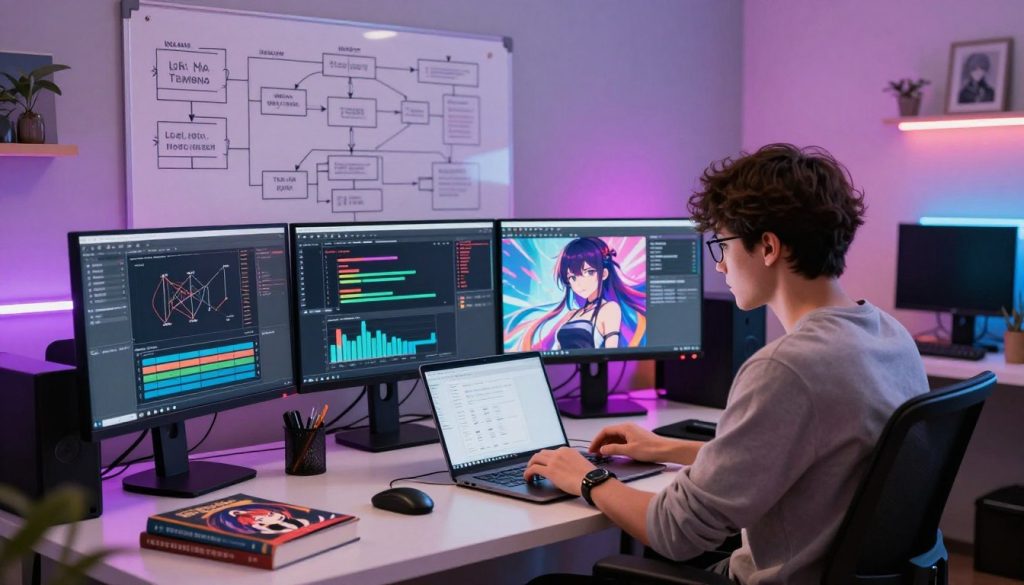
If you want to create a unique character or art style, training a custom LoRA is the best choice. While there are many options in public repositories, making your own model ensures your vision stays consistent. This process takes patience, but it offers creative freedom that pre-trained models can’t match.
Preparing Your Dataset for Training
A high-quality dataset is key to a successful model. Aim for 15 to 30 images that clearly show the character or style you want. Make sure these images are high-resolution and free from artifacts or watermarks.
Tagging your images accurately is also crucial. Use specific keywords to label each image, focusing on unique features like hair color or eye style. Consistency in your tags helps the model learn what it needs to during training.
Configuring Training Parameters
With your data ready, set up the training parameters. Balance the learning rate and number of epochs to avoid overfitting. Overfitting makes the model too rigid, unable to adapt to new poses or environments.
“Training an AI model is not a one-time event; it is a continuous cycle of observation, adjustment, and refinement that turns raw data into a polished creative tool.”
The table below shows common parameter adjustments to find the right balance for your setup and dataset size.
| Parameter | Low Setting | High Setting |
|---|---|---|
| Learning Rate | Stable, slower learning | Fast, risk of artifacts |
| Epochs | Under-trained, generic | Over-trained, rigid |
| Network Rank | Smaller file, less detail | Larger file, high detail |
Testing and Iterating on Your Custom Model
After training, test your model in real-world scenarios. Generate various images with different prompts to check versatility. If the character looks wrong or doesn’t match the style, adjust your dataset or training settings.
Iterative testing is key to achieving top results. Don’t hesitate to discard bad results and refine your tags or image selection. By testing each version, you’ll create a model that perfectly captures your vision.
Refining Your PornWorks Waifu Output
Turning a basic image into a work of art is the last step in your creative journey. Even the most advanced waifu ai generator needs some extra care to look professional. By using certain post-processing techniques, you can make your images sharp and correct.
Using Hires Fix for Upscaling
Images generated at low resolution often look blurry. The Hires fix feature is key for making these images clearer. It starts by creating the image at a lower resolution and then refines it to add sharpness and details.
This step is crucial for high-quality prints or digital wallpapers. Adjusting the denoising strength lets you control how much the AI changes the image. A lower setting keeps it closer to the original, while a higher setting adds more detail.
Applying Inpainting to Fix Anatomy
Even top models can have errors like distorted hands or faces in your pornworks waifu creations. Inpainting is the answer to these small mistakes. It lets you mask an area and tell the AI to remake just that part.
Zoom in on the wrong fingers or eyes to give the AI a clear target. Using a small prompt for the masked area, you can fix anatomy without changing the rest. This level of control makes you a true digital artist.
Post-processing Techniques for Polished Images
After your image is upscaled and looks right, you can add the final touches. Many users tweak color balance, contrast, and saturation using external software. These changes make your pornworks waifu pop with bright colors and deep shadows.
Consider using filters or light overlays to set a mood or atmosphere. The goal of using a waifu ai generator is to show your unique vision. Taking time to refine your work ensures every detail matches your creative goal.
Managing Your Model Library and Storage
Managing hundreds of gigabytes of model files is a big task. Without a good plan, your local drive can get full fast. Efficiency in your work depends on how you organize these files.
Organizing Checkpoints and LoRAs
Begin by setting up a clear folder structure in your Stable Diffusion directory. Organize your checkpoints by model type, like SD 1.5 or SDXL, to avoid compatibility issues. Keep LoRAs in their own folder, sorted by character, style, or clothing.
Using a naming convention helps you find files quickly. Rename files to include model version and key features. This makes finding the right file for your project much easier.
Optimizing Disk Space for Large Files
Big model files can fill up your storage quickly. To free up space, prune your checkpoints to remove unneeded data. You can also use symbolic links to store models on a bigger drive while keeping software on your main SSD.
Here’s a comparison of storage strategies to keep your system running well:
| Strategy | Primary Benefit | Difficulty Level |
|---|---|---|
| Model Pruning | Reduces file size by 50% | Moderate |
| Symbolic Links | Uses secondary storage | Advanced |
| Cloud Archiving | Protects against hardware failure | Easy |
Backing Up Your Custom Creations
Your custom models and LoRAs are the result of a lot of work. Always have a redundant backup system to keep them safe from loss or hardware failure. An external hard drive is good for local backups, and cloud storage adds extra security.
Remember to back up your training data and settings too. If you need to retrain or tweak a model, having the original data is invaluable. Regular backups keep your creative work safe from technical problems.
Troubleshooting Common Generation Errors
Even the most skilled creators face technical challenges when making a pornworks waifu. Local generation gives you a lot of freedom but also needs you to handle hardware and software issues. Learning how to fix these problems will keep your work smooth and reduce downtime.
Resolving CUDA Out of Memory Issues
The “CUDA Out of Memory” error is common. It occurs when your GPU can’t handle high-resolution images or big batches. To solve this, try these steps:
- Lower your batch size to one to ease memory use.
- Use lower output resolution and upscale later.
- Use “MedVRAM” or “LowVRAM” flags in startup arguments.
“Technical challenges are not failures; they are simply opportunities to optimize your local environment for better performance.”
Fixing Distorted Faces and Limbs
Anime models can have trouble with complex shapes, causing distorted faces or extra limbs. You can fix these by tweaking your settings instead of starting over. Tools like ADetailer help by automatically fixing faces.
If anatomy issues persist, adjust your prompt to focus on specific parts. Changing the sampler or increasing steps can also help. Consistency is crucial for quality results.
Handling Model Loading Failures
Model loading failures often stem from file path or data corruption issues. Make sure your model files are in the right place and have the correct extension. If a download was cut off, the file might be bad.
Pro tip: Keep a backup of your favorite models in a separate folder. If a file gets corrupted, you can quickly swap it out without re-downloading. Organizing your library keeps your pornworks waifu projects ready for your next session.
Conclusion
Creating custom waifus is a mix of technical skill and artistic flair. You now know how to work with complex tools to make top-notch anime nsfw content. This content shows off your personal style.
Your path in local AI generation is all about trying and improving. Each model and LoRA you test gets you closer to your dream look. Spend time perfecting your prompts and settings to add more detail to your anime nsfw projects.
The world of generative art is always changing. Keep exploring new tools and updates to stay ahead. You can make new things possible with Stable Diffusion and special anime models.
Share your work with others to get feedback and ideas. Your unique view helps the whole community grow. Begin your next project today and see where it takes you.
FAQ
What are the minimum hardware requirements to run a waifu ai generator locally?
To run a waifu ai generator on your machine, you need an NVIDIA GPU with at least 8GB VRAM. This is because Stable Diffusion requires a lot of processing power. While lower specs can work, a modern card like an RTX 3060 or higher is best. It makes sure your anime nsfw images are made fast and without crashes.
Where is the best place to find high-quality checkpoints for a pornworks waifu?
The top places for finding special models are Civitai and Hugging Face. These sites have many community-made models for anime nsfw content. Always check the model description to make sure it works with your Stable Diffusion WebUI version.
How do LoRAs improve the consistency of my waifu ai generator outputs?
LoRAs are small plugins that add specific traits or styles to a model. They help keep your pornworks waifu looking the same in different situations. This is key for creating consistent, high-quality galleries.
What is the difference between a positive and a negative prompt in anime nsfw generation?
A positive prompt tells the AI what you want to see, like “masterpiece, high quality, 1girl, blue hair.” A negative prompt tells it what to avoid, like “low quality, bad anatomy, extra fingers.” Finding the right balance is crucial for clean, professional anime nsfw images.
Why do my generated images look washed out or lack detail?
If your images seem dull or blurry, you might need a VAE. VAEs help fix colors and details, especially in complex areas like eyes and hair. Many models come with a VAE, but you can also use a standalone VAE like vae-ft-mse-840000-ema-pruned for better results.
How can I fix distorted hands or faces in my waifu ai generator?
Anatomy problems are common but can be fixed with the Inpainting tool in the Stable Diffusion “img2img” tab. Mask the bad area and re-generate it with a higher denoising strength. This will improve hands and facial expressions for your anime nsfw projects.
Can I create a custom LoRA for a specific character?
Yes, you can train your own LoRA using tools like Kohya_ss. You’ll need a set of high-quality images of your desired character. Tag these images with keywords. Once trained, your custom LoRA lets you generate that character in any pose or setting.
What should I do if I encounter a “CUDA out of memory” error?
This error happens when your GPU runs out of VRAM during generation. To solve it, try reducing image size, lowering batch size, or enabling “Med-VRAM” or “Low-VRAM” mode in Stable Diffusion settings. Extensions like Tiled Diffusion can also help make larger images without using too much hardware.
How do I manage a large library of pornworks waifu models and LoRAs?
As your collection grows, so does your disk space. Organize your files in subfolders within the “models” directory of your Stable Diffusion WebUI. You can also use symbolic links to store heavy checkpoints on an external SSD. This keeps your main folder organized and easy to access.